

What is AIMS360?
AIMS360 is a comprehensive fashion ERP software designed specifically for apparel business management. It provides integrated solutions for the fashion industry including product information management (PIM), production lifecycle management (PLM), order management (OMS), warehouse management (WMS), shipping, and accounting. AIMS360 supports omni-channel operations including Shopify integration, EDI, dropship, and B2B wholesale.What Does the Integration Do?
The AIMS360 integration automates your return workflow by connecting Redo directly to your AIMS360 ERP system: Automatic RMA Creation When a customer initiates a return through Redo, an RMA is automatically created in AIMS360 with all the necessary details—customer information, SKUs, quantities, return reasons, and processing instructions. Automatic Return Processing When items are physically received in your warehouse, AIMS360 notifies Redo, which automatically triggers the appropriate return processing:- Refunds: Issued back to the customer’s original payment method
- Exchanges: New orders created and sent to your fulfillment queue
- Store credit: Applied to the customer’s account
How to Set It Up
Follow these steps to connect AIMS360 to your Redo account:1
Obtain AIMS360 Credentials
Contact your AIMS360 representative to obtain your API credentials. You’ll need these to establish the connection between Redo and AIMS360.
2
Navigate to Integrations Settings
In your Redo dashboard, go to Settings → Returns & Claims → Integrations
3
Find the AIMS360 Integration Tile
Locate the AIMS360 integration tile in your integrations list: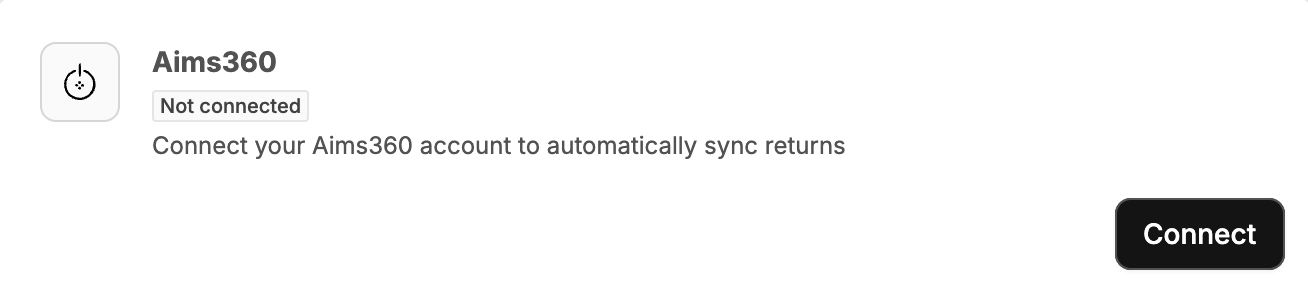
4
Enter Your Credentials
Click Connect and enter your AIMS360 API credentials in the connection form: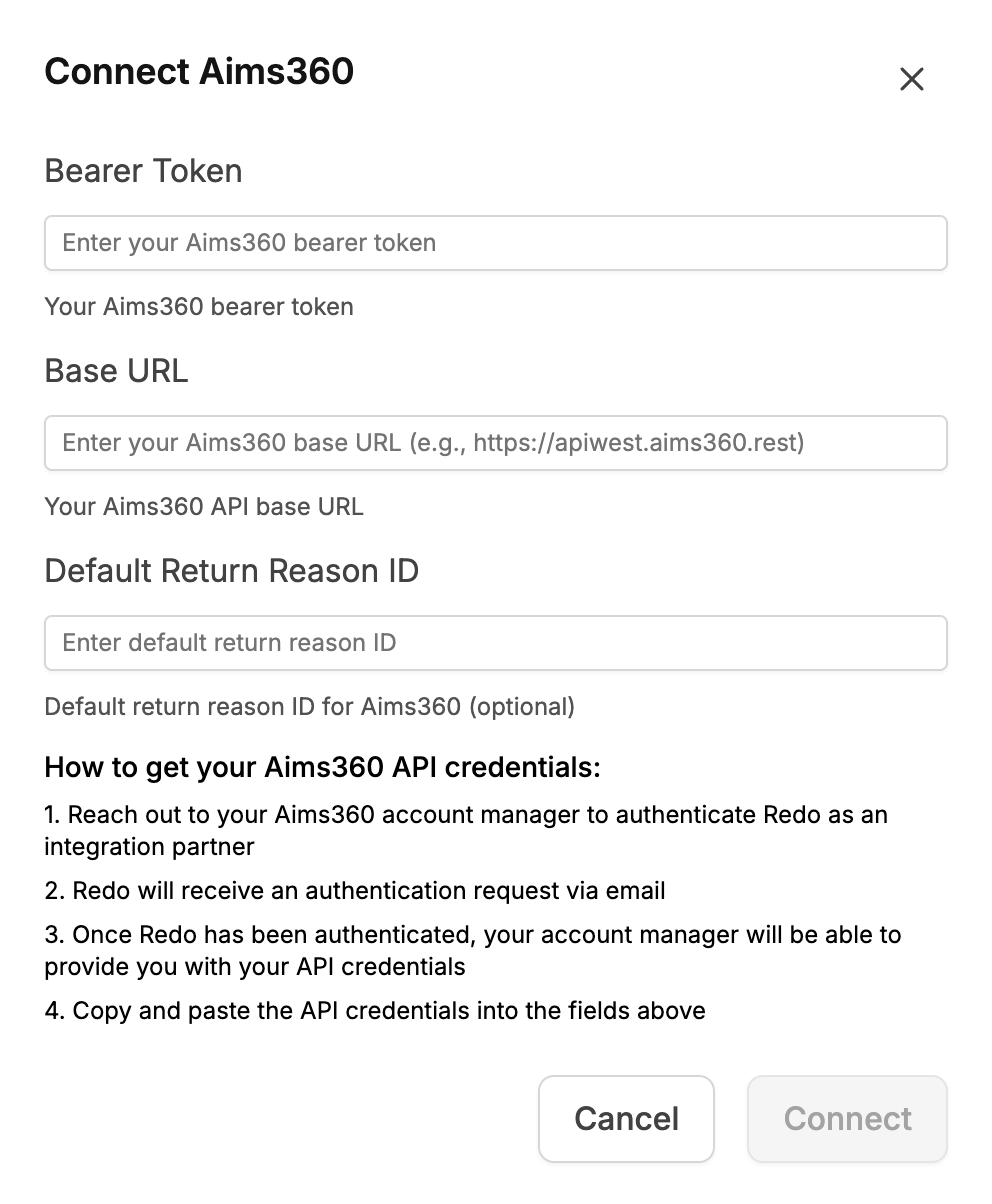
5
Configure Default Return Reason Code
You’ll be prompted to enter a default return reason code. This code determines how returns are categorized in AIMS360. Consult with your AIMS360 administrator for the appropriate code to use.
6
Configure Default Warehouse ID
Enter your default warehouse ID to link your Redo returns to the correct AIMS360 warehouse location: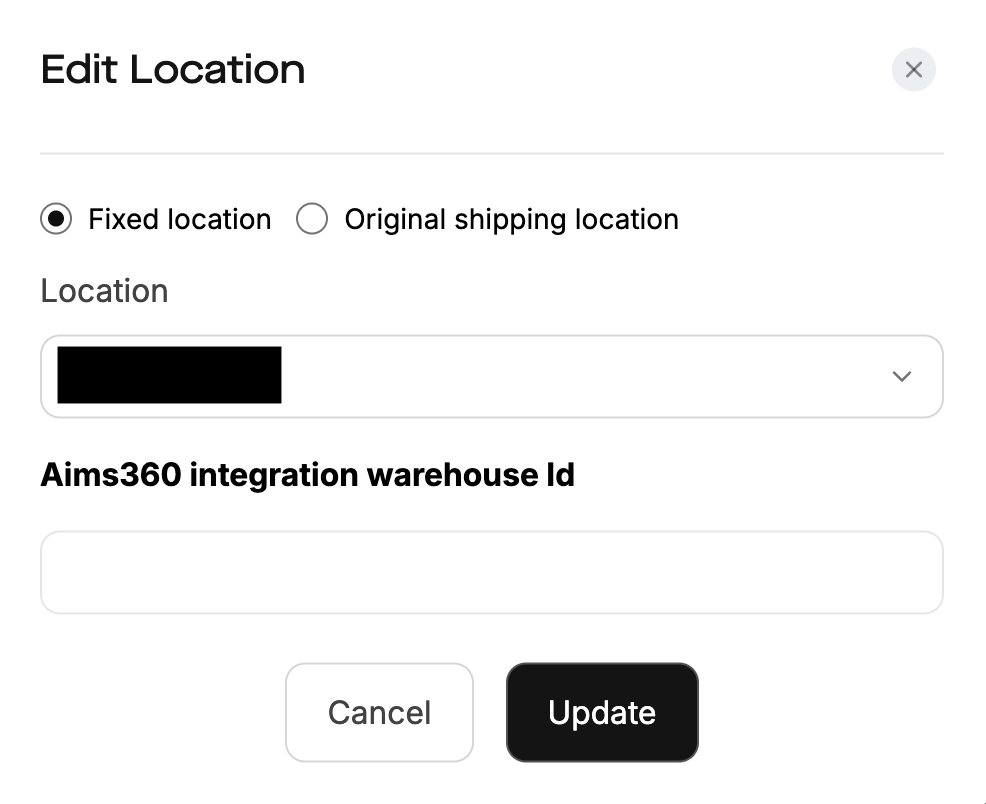
7
Complete the Connection
Once all credentials and configuration values are entered, Redo will test the connection to ensure everything is configured correctly. You’ll see a confirmation once the integration is successfully connected.
If you need help obtaining your AIMS360 API credentials, return reason codes, warehouse ID, or encounter any issues during setup, contact our support team at support@getredo.com.
How Long Does It Take?
Once we have your AIMS360 API credentials, the integration typically takes approximately 30 minutes to configure and test. This includes:- Entering and validating your credentials
- Configuring return reason codes
- Setting up your warehouse ID