

Redo Free Returns Coverage
Redo offers a state of the art return management software which integrates seamlessly into Shopify and Hydrogen stores. It provides a customer portal to submit returns and a merchant app to monitor and manage returns. In the event of a return, Redo provides free return labels and package protection for an optional add-on fee which users add at checkout time.@redotech/redo-hydrogen
NPM package for Shopify Hydrogen integration
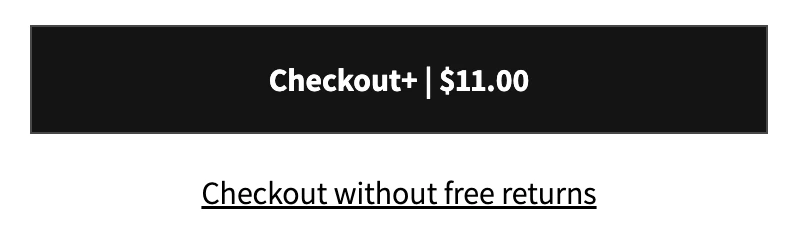
Quickstart
For Redo Hydrogen stores, we provide the @redotech/redo-hydrogen npm package which provides wrapper utilities around our public API.Option 1: Use checkout buttons component
Add the RedoProvider:Option 2: Manual enable/disable with useRedoCoverageClient()
For more custom options, you use the useRedoCoverageClient() hook. It’s important that you await after calling redo.enable().Redo Info Card
This component is provided as an optional addition to your checkout design. It has an assorted number of customizations that are detailed below.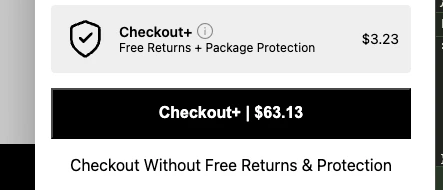
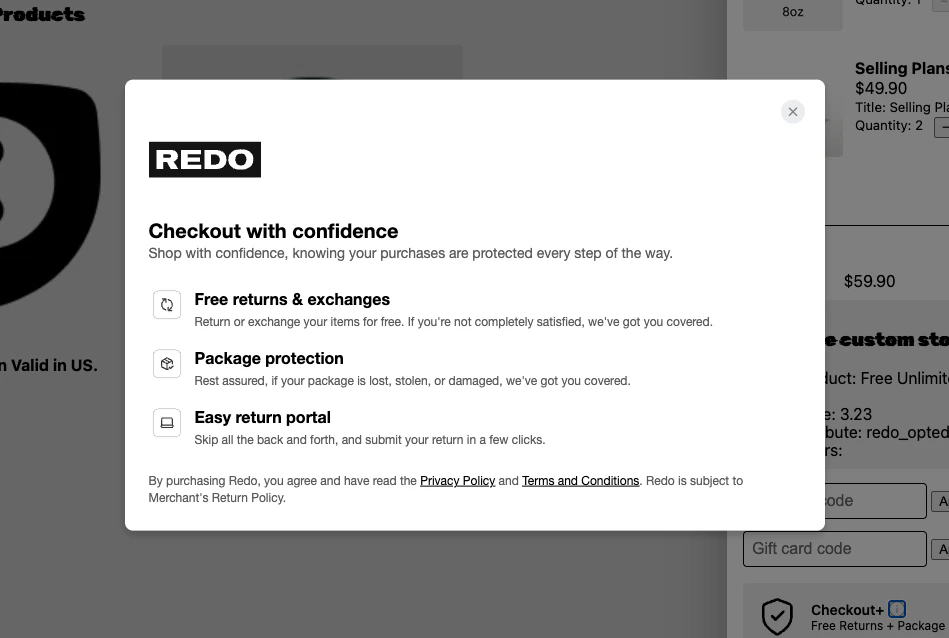
Customizations
showInfoIcon
showInfoIcon
showInfoIcon?: boolean = trueThis toggle decides whether the info icon is visible. Without the icon visible, there is no way to show the info modal.onInfoClick
onInfoClick
onInfoClick?: (): voidThis function allows for full customization of the infoModal. By passing in the click functionality, clicking the info icon will instead run this function.infoCardImageUrl
infoCardImageUrl
infoCardImageUrl?: stringThis url will replace the shield icon currently shown on the info card.infoModalLogoUrl
infoModalLogoUrl
infoModalLogoUrl?: stringThis url will replace the Redo logo currently shown on the info modal.infoModalImageUrl
infoModalImageUrl
infoModalImageUrl?: stringThis url will add a background image on the left side of the info modal. An example is shown below.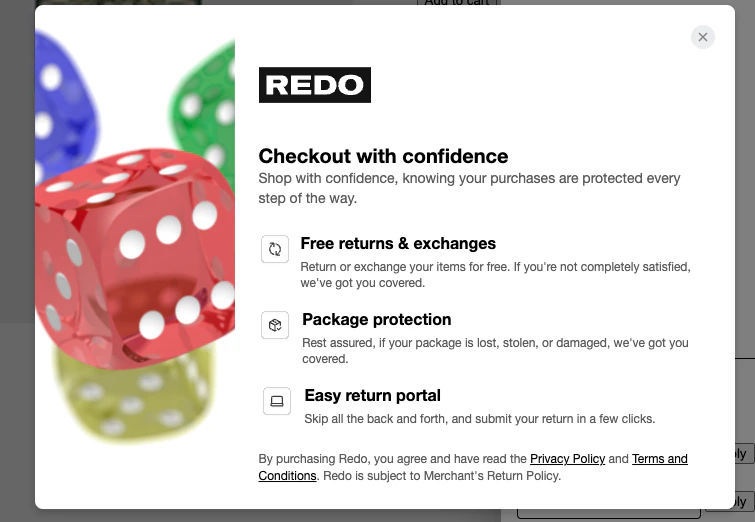
modalContent
modalContent
modalContent?: ReactNodeThis node will replace the internal content of the info modal with your own content. IMPORTANT: this will remove all styling of the main content, but it will not remove the infoModalImage. An example is shown below.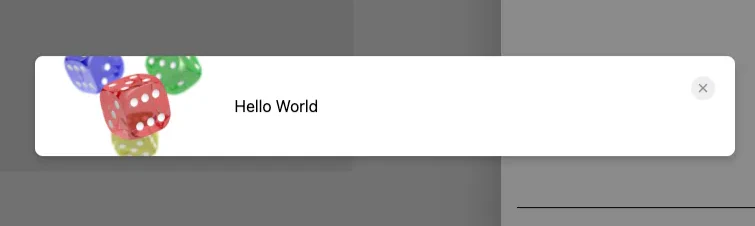
Utilities
The following utilities are provided as top-level exports from the @redotech/redo-hydrogen package. The RedoCoverageClient provides functions to enable and disable coverage, as well as the information necessary to enable coverage manually without using the helper functions. It is a consumer of context from the RedoProvider so it must be a descendant.Functions
useRedoCoverageClient(): RedoCoverageClient
Returns a RedoCoverageClient object with the following interface:- Price provided uses cart currency
- The cart and storeId values are just re-exporting the cart value passed into the provider
- If eligible is true, the price and cartProduct will for sure have a value and the price will be non-zero
Providers
RedoProvider
- Cart type should implement this Cart type from “@shopify/hydrogen”. If you are getting errors, check the errors on the RedoCoverageClient. You should be getting a message saying what fields are missing.
- If you are using useCart(), this type varies slightly. As a workaround, use
<RedoProvider storeId={/* ID */} cart={{...cart, lines: { nodes: cart.lines }}} />. Future versions of this package will be more flexible on cart input types.
Components
RedoCheckoutButtons
RedoInfoCard
Content Security Policy
In order to allow the necessary requests to make it to Redo’s API, you must put Redo’s hostnames into your allowed hostnames list. The required domains have been exported from the module as the constant REDO_REQUIRED_HOSTNAMES:API
The utilities retrieve their information from Redo’s public coverage endpoints, primarily the Coverage Products endpoint. These endpoints expose storefront-facing coverage data and do not require any access scopes. If you create an API token for this integration, leave all access scopes unselected.Speed Optimization
For stores that support multiple simultaneous cart actions (adding/removing cart lines and modifying cart attributes), you can improve speed further by adding the Redo product and cart attribute simultaneously. Instead of callingredo.enable() and redo.disable(), manually add the redo.cartProduct and redo.cartAttribute in a single request.
If manually adding the Redo product and attributes, it’s important to clear
out any other Redo products as they may change based on cart contents. Redo
products can be identified by the vendor name “re:do”.